Contents Show
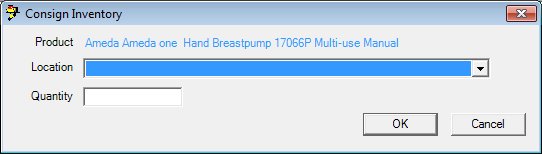
The Consign Inventory screen is used to allocate inventory items to clinic sites and to user-defined, non-clinic locations such as churches, shelters, or local organizations. Before users can issue inventory items to participants, items must be consigned to the clinic site or location from which the inventory item is being issued.
Consign Inventory screen
|
|
Interface InitializationUpon initial display of the screen, the following occurs:
|
Unless otherwise stated below, all controls on the Consign Inventory screen are visible and enabled when:
The screen is active.
If one or more special conditions exist that affect a control on the Consign Inventory screen, the condition(s) are documented for that specific control below.
View the name of the product selected for consignment in the Product text and value label.
This control allows the user to view the manufacturer, brand, type, and subclass use/type of the selected inventory product. It will display the product description concatenated from the MANUFACTURER, MANUFACTURERBRAND, and MANUFACTURERBRANDTYPE tables for the product in the product table plus the descriptions from the Reference Dictionary for 'INVPDCTSUBCLASSUSE' and 'INVPDCTSUBCLASSTYP'.
Information in this control is read-only and cannot be changed. The value label displays in the inverse color of the screen.
Select the location to which to consign the inventory items in the Location drop-down list box.
The drop-down list box will display all locations in the INVENTORYLOCATION table in alphabetic order. No entry will initially be selected.
Enter the number of items to consign to the selection location in the Quantity masked edit box.
The masked edit box will allow entry of nine (9) numeric digits.
Click the OK button to process the screen.
It is the default button for the screen, unless otherwise noted.
It does not have a mnemonic. Its keyboard shortcut is the Enter key.
The Manage Inventory screen displays when the button is clicked and the data grid will be refreshed.
If the inventory is a trackable asset inventory item and the inventory item status (disposition) is equal to "Issued" or to "Consigned", the system displays the W0014 standard warning message.
It does not have a mnemonic. Its keyboard shortcut is the Esc (escape) key.
The Manage Inventory screen displays when the button is clicked.
If data can be validated and saved on the screen, the following processes occur when the screen is processed:
A process to check for required controls as identified in the Data Map below is performed.
A process to check for valid entries as identified individually for each applicable control in Screen Elements above is performed.
A process to check for edits and cross edits as identified for each applicable control in Screen Elements above is performed.
If any checks or processes fail, a standard error message displays.
If no data can be validated and saved on the screen:
No cross edits are performed.
All values are considered legitimate.
No data is written to the database.
The Data Map defines the values saved for all controls on the screen. If available, any additional notes or comments are displayed in the Notes column.
|
Control Label |
Required |
Table |
Column |
Notes |
|
Location |
· |
InventoryItem |
InventoryLocationID |
Trackable products only |
|
· |
· |
InventoryItem |
If the status is not currently set to Issued then Set Status to C=Consigned |
Trackable products only |
|
· |
· |
InventoryItem |
Set StatusDate to System Date when the Status changes |
Trackable products only |
|
· |
· |
· |
· |
· |
|
Location |
X |
InventoryConsigned |
InventoryLocationID |
· |
|
Quantity |
X |
InventoryConsigned |
Add Quantity to Quantity |
· |
|
· |
· |
· |
· |
· |
|
Location |
· |
InventoryConsignedTrans |
InventoryLocationID |
· |
|
Quantity |
· |
InventoryConsignedTrans |
Quantity (quantity added for this transaction) |
· |
|
· |
· |
· |
· |
· |
|
· |
· |
InventoryItemHistory |
Add a row to history for each add/update of the inventory item |
Trackable Products Only |
|
Software Version: 2.40.00

